
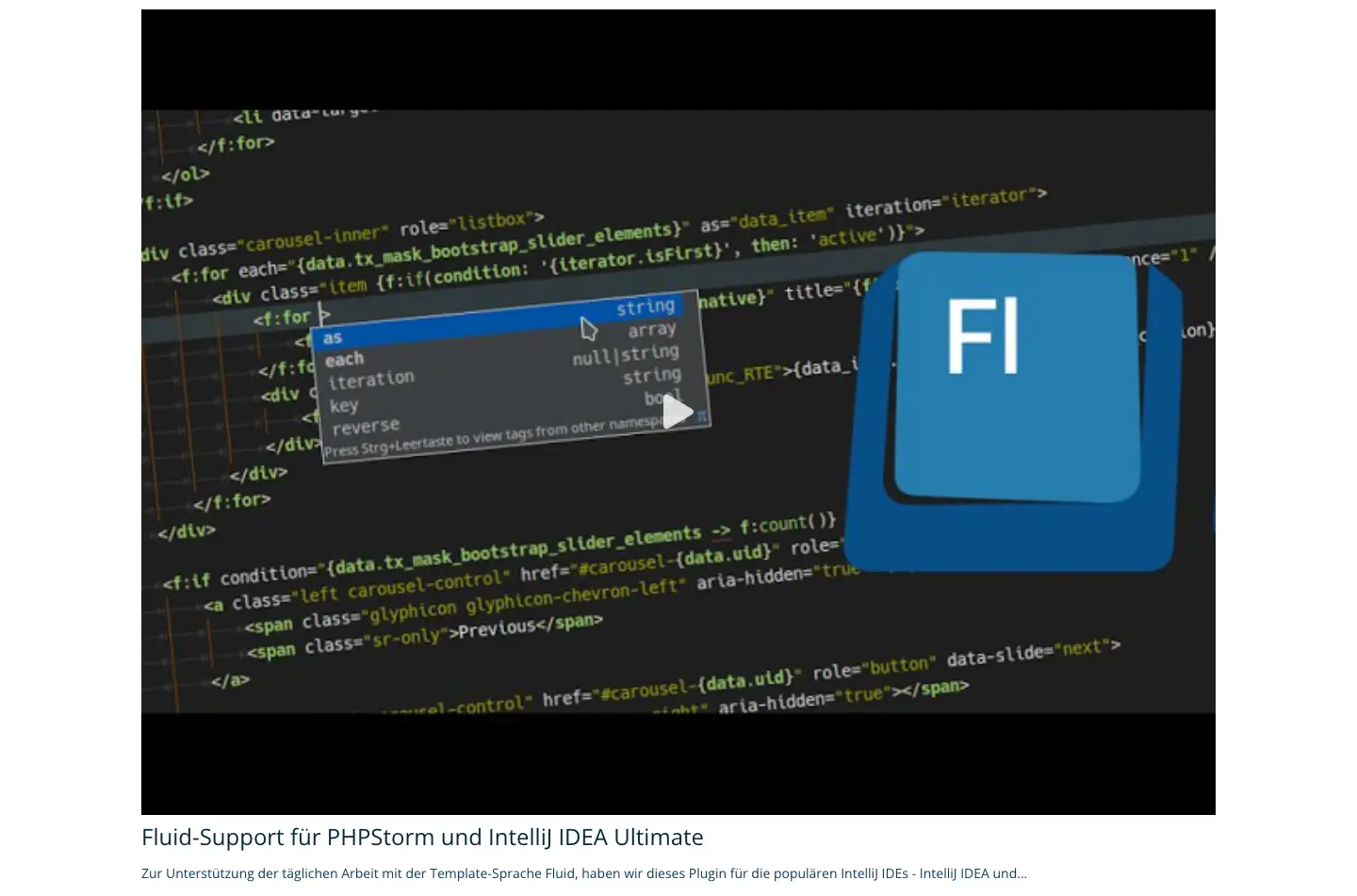
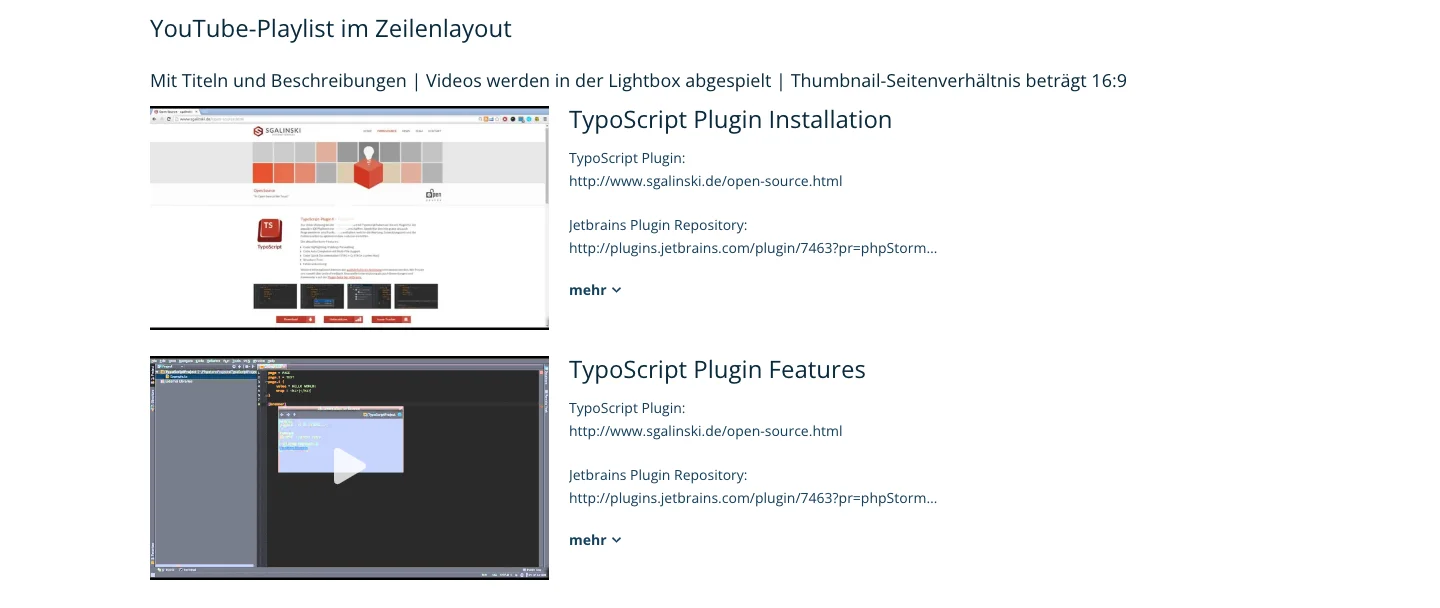
2 TYPO3 Extension: Installation & Integration
{"message":"401 Unauthorized"}

Anyone looking to embed videos in TYPO3 will quickly find that the built-in tools have their limitations. While external platforms like YouTube or Vimeo can generally be integrated using HTML, and local videos can be embedded via the file list, this is often insufficient in practice for convenient editorial management, a consistent look and feel, and flexible display options.
With sg_video, a modern, centralized TYPO3 extension is now available that combines the previous solutions, sg_youtube and sg_vimeo, into a single successor. Instead of maintaining multiple extensions in parallel, editorial teams and integrators now have a unified solution for YouTube, Vimeo, and local TYPO3/FAL videos in a single content element. The familiar features are retained and expanded to include support for locally hosted videos.
The extension supports the embedding of individual videos, channels, playlists, and Vimeo showcases. Additionally, local video files can be embedded directly from TYPO3. Consistent display and control options are available for all sources, such as various layouts, lightbox or inline playback, title and description display, filter functions, and custom thumbnails. The demo explicitly shows both YouTube and Vimeo content as well as locally hosted videos within the same extension.
This allows you to create a centralized video solution for TYPO3 websites with minimal effort: from individual embedded videos to extensive media libraries featuring content from various sources.
| TYPO3 Versions | 13.4.X | 14.X |
| PHP Versions | 8.3.X |
| Tested Browsers | Evergreen Browsers |
Do you run a YouTube or Vimeo channel and want to set up a media library on your company website featuring content from various video sources? With sg_video, you can do this quickly and easily in TYPO3. The extension combines YouTube, Vimeo, and local videos into a single content element. This makes it just as easy to embed entire channels, playlists, or showcases as it is to embed individual videos. Video files managed locally in TYPO3 can also be seamlessly integrated and customized to match the website’s design.
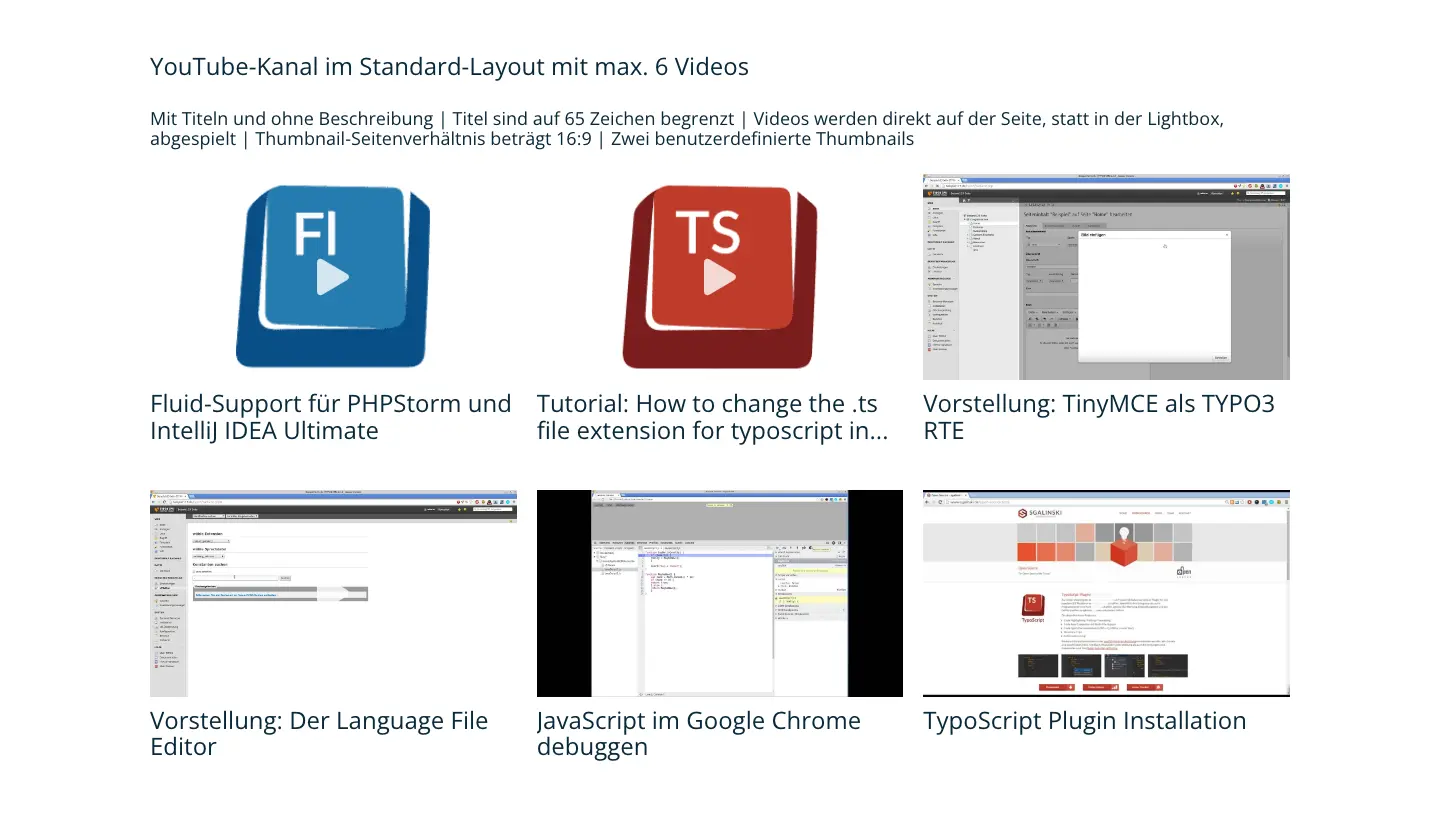
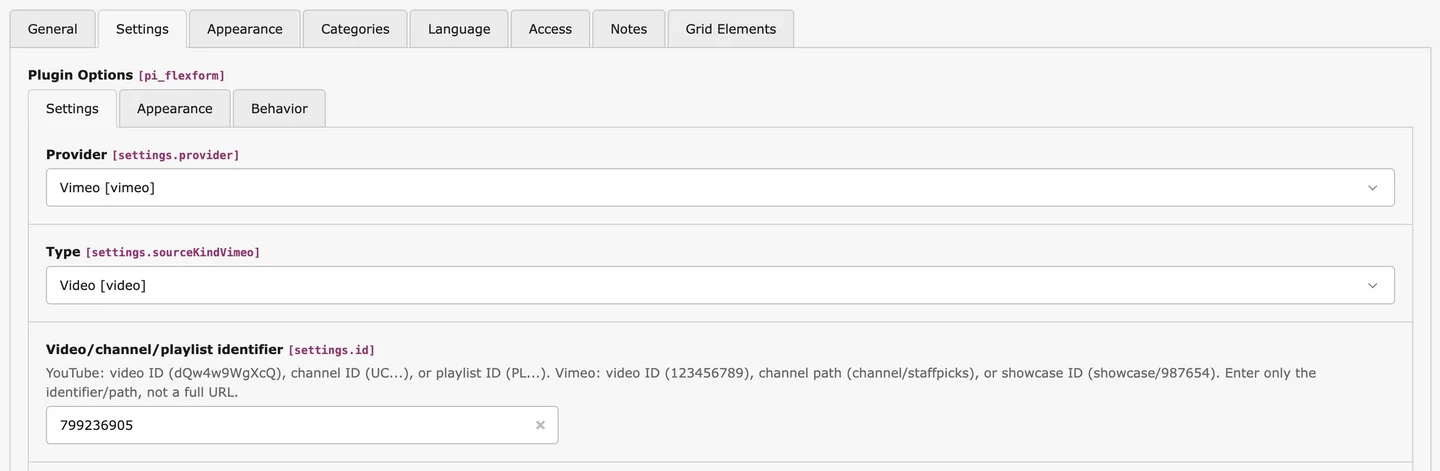
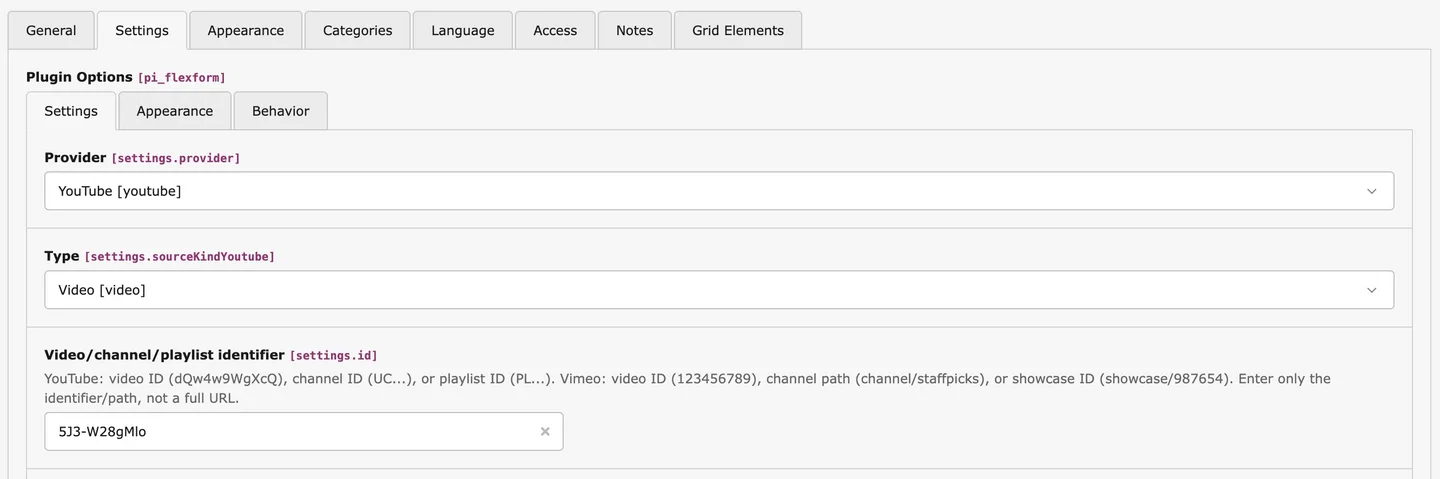
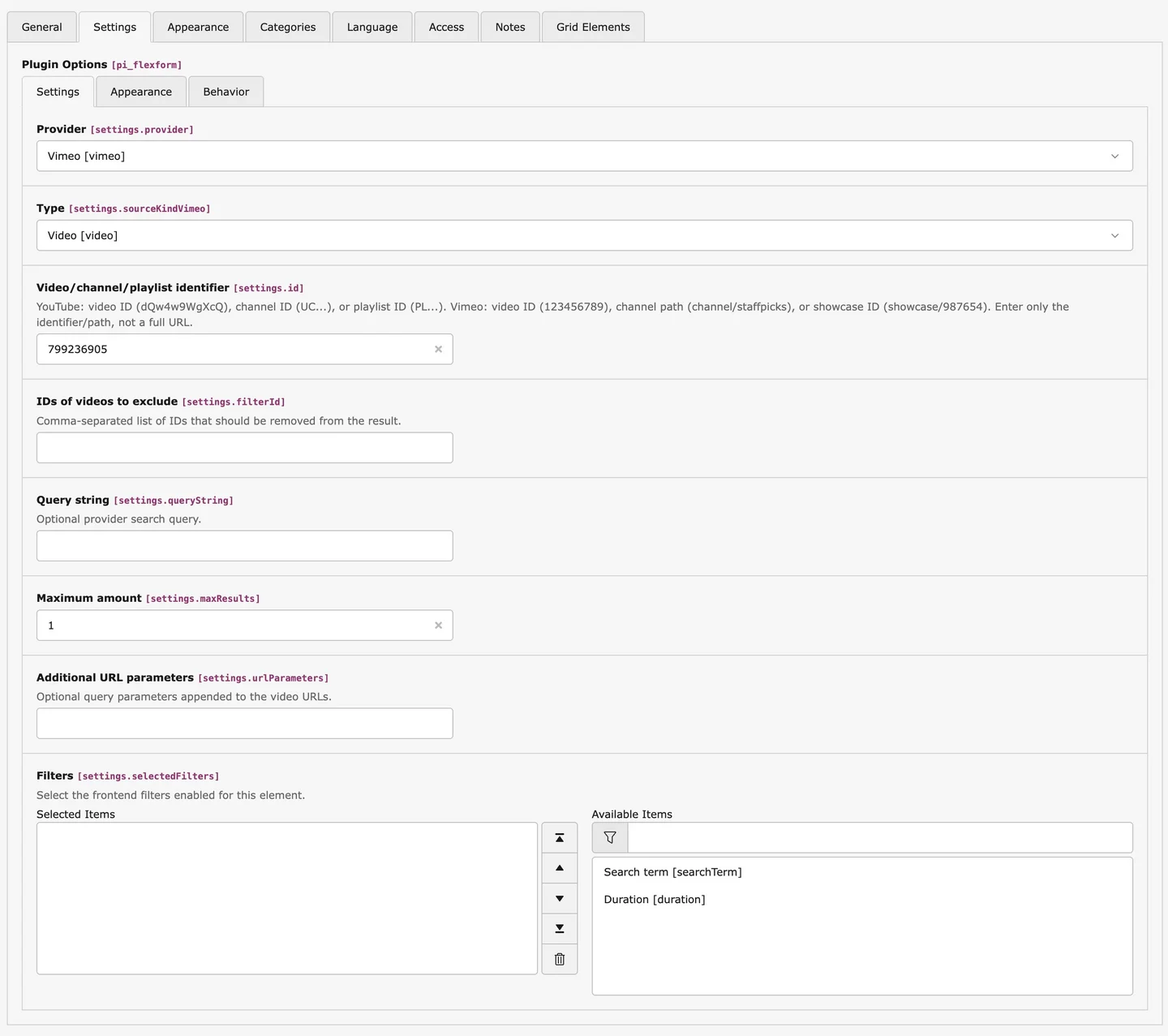
The integration process is intentionally kept simple: For YouTube and Vimeo, simply enter the respective video, channel, playlist, or showcase ID in the content element of sg_video, and the desired content will be embedded directly into TYPO3. Alternatively, you can select and use local video files from the TYPO3 file system. This allows for flexible video integration with minimal effort, without having to switch between different extensions.
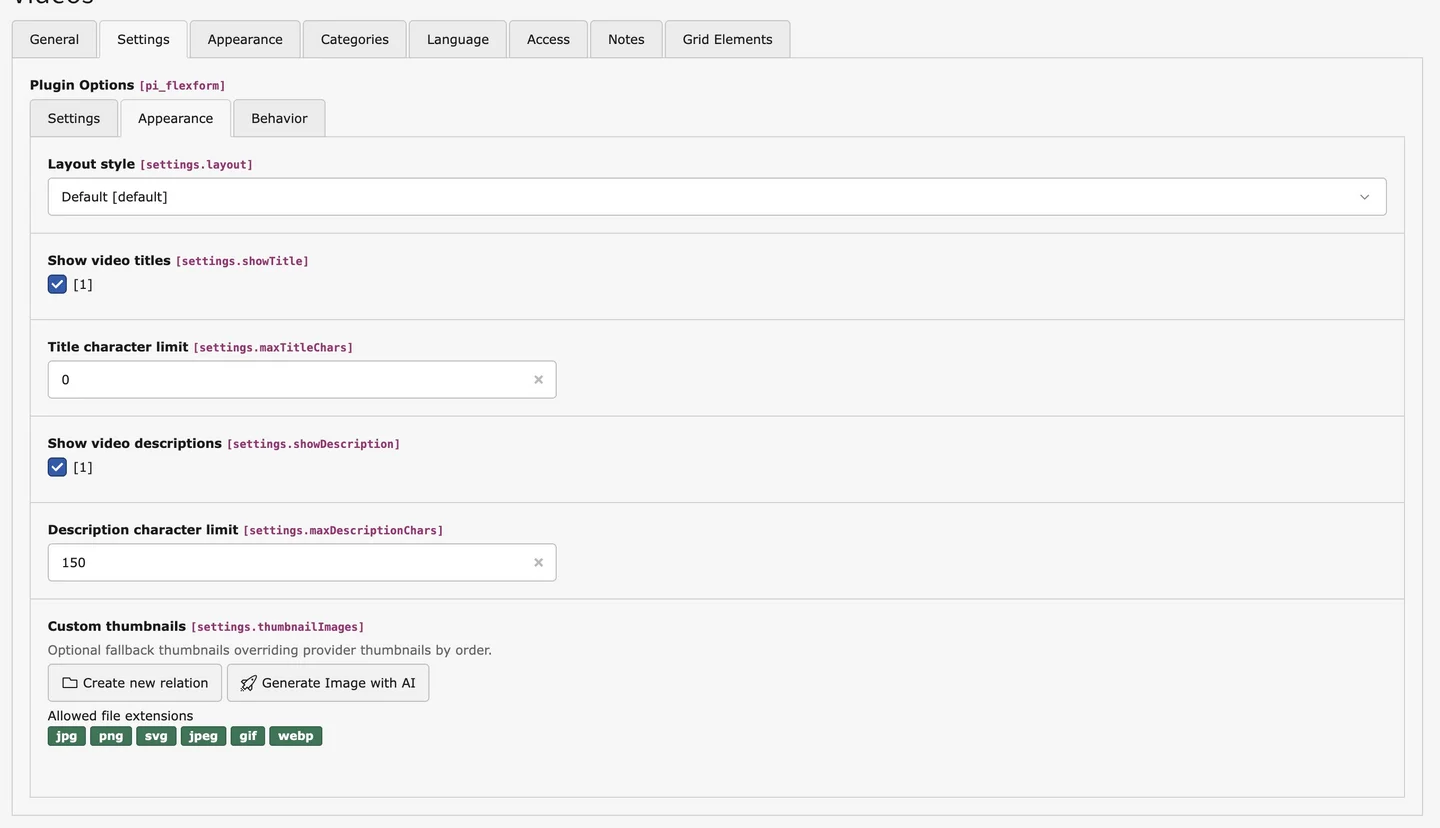
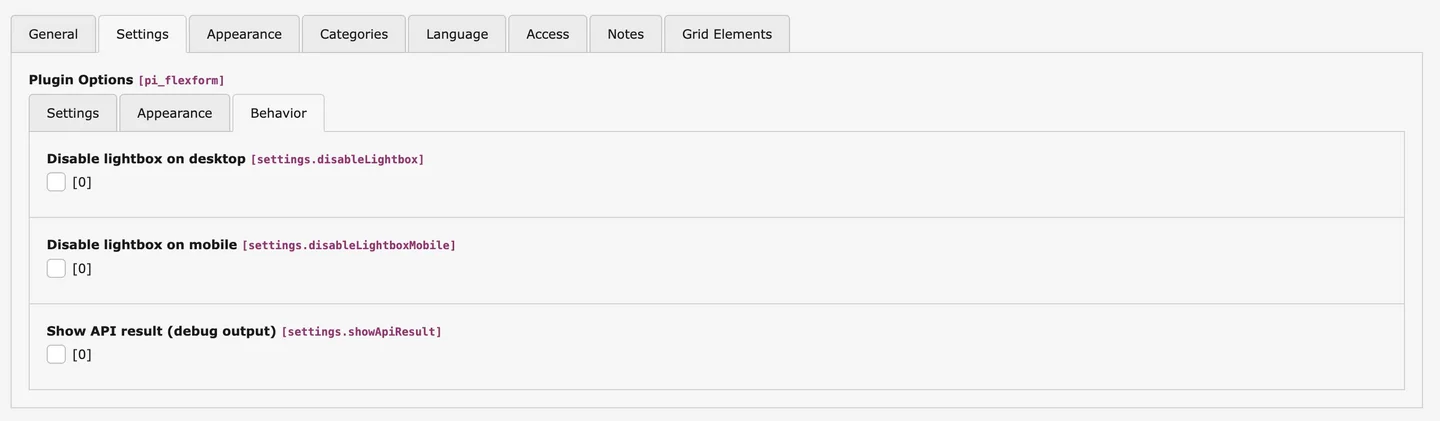
With sg_video, videos from various sources can be presented with a consistent look. At the same time, there is plenty of flexibility for customization: Using the available settings for layout, information, thumbnails, and behavior, individual videos can be highlighted or integrated into thematic video overviews. Depending on your needs, you can display titles and descriptions, play videos in a lightbox or directly on the page, and use different layouts. The interface remains clear and user-friendly for editorial use.
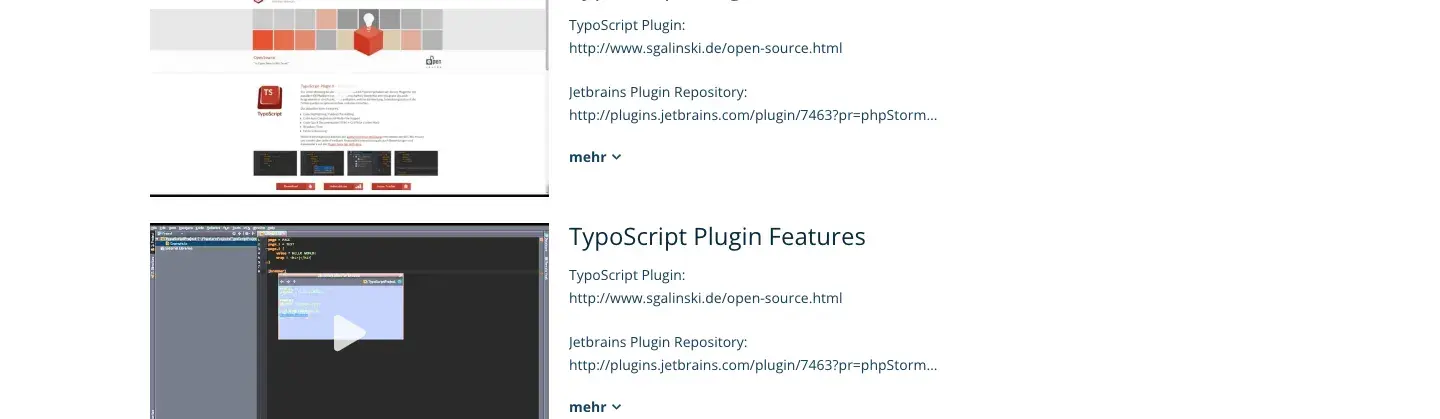
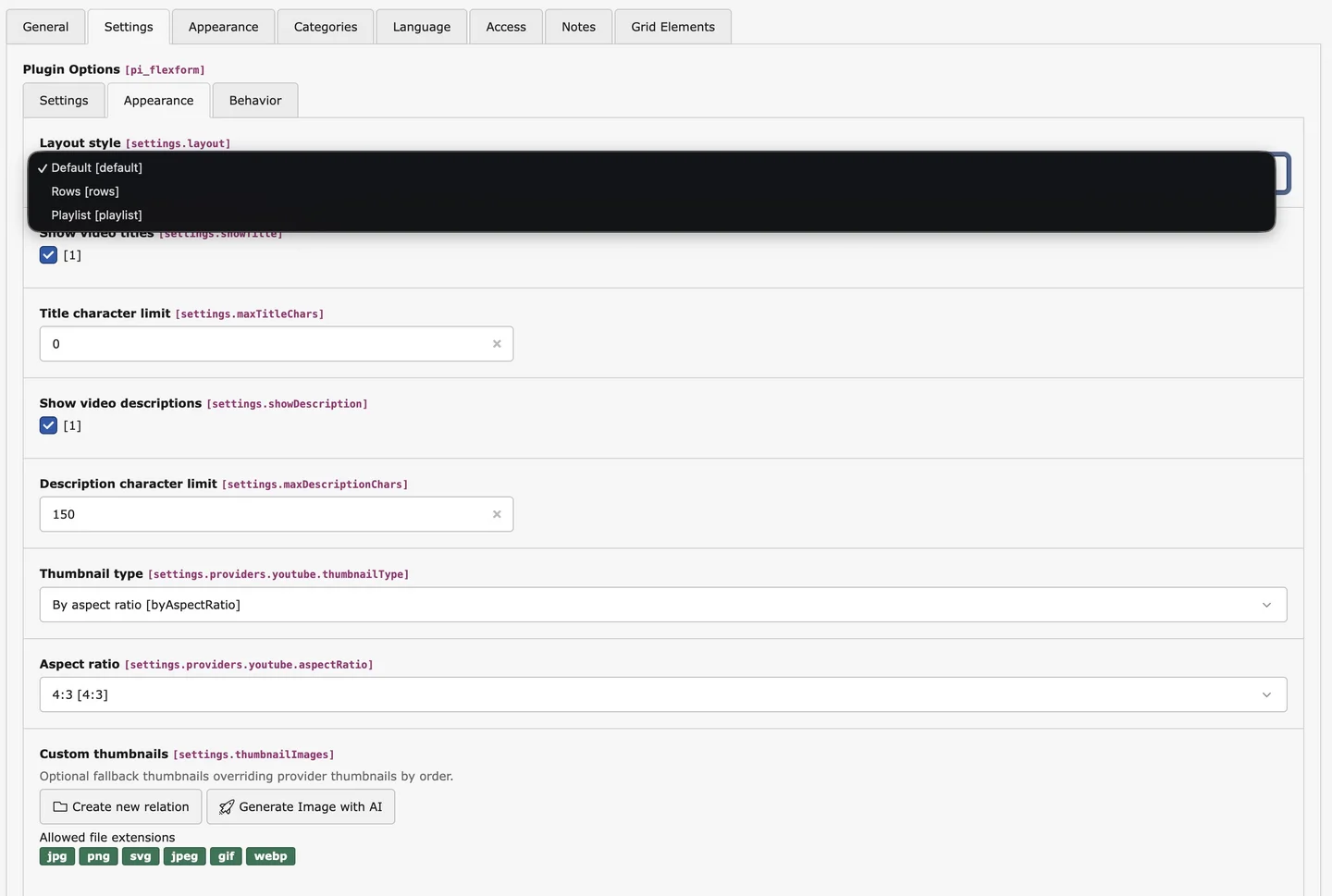
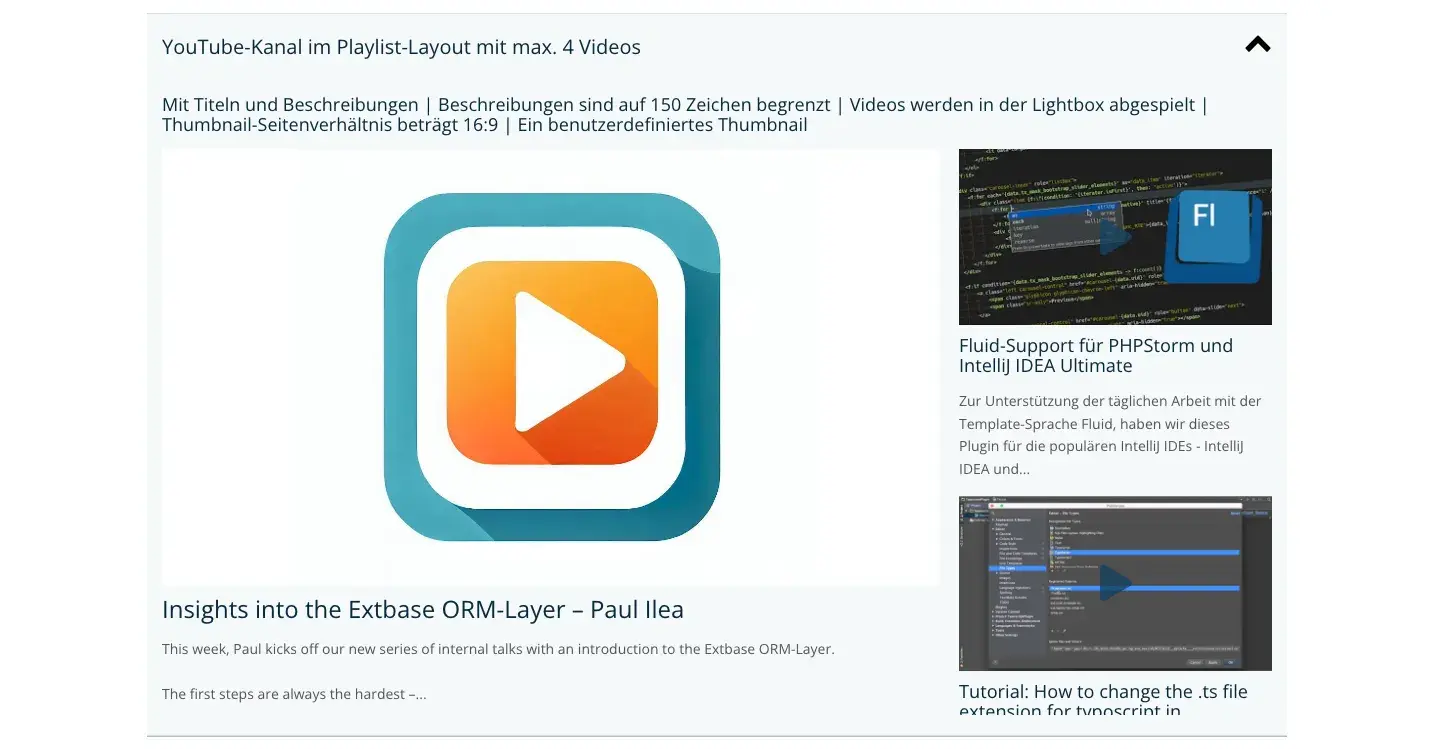
Your media library becomes even more personal with custom thumbnails, which are the small preview images you see before a video starts. Both video extensions allow you to set custom thumbnails yourself. To do this, all you have to do is upload the images you want to be used as thumbnails in the file list and link them to the related media element.
You can easily filter entire video channels in the TYPO3 backend according to desired search terms so that only relevant videos are displayed on your website.
If you have numerous videos, you also have the option of activating filters in the frontend so that your users can search specifically for content in the video media library This keeps the overview clear and your visitors can find the videos that are of interest to them more quickly This not only optimizes the user experience, but also promotes interactivity and dwell time on your website



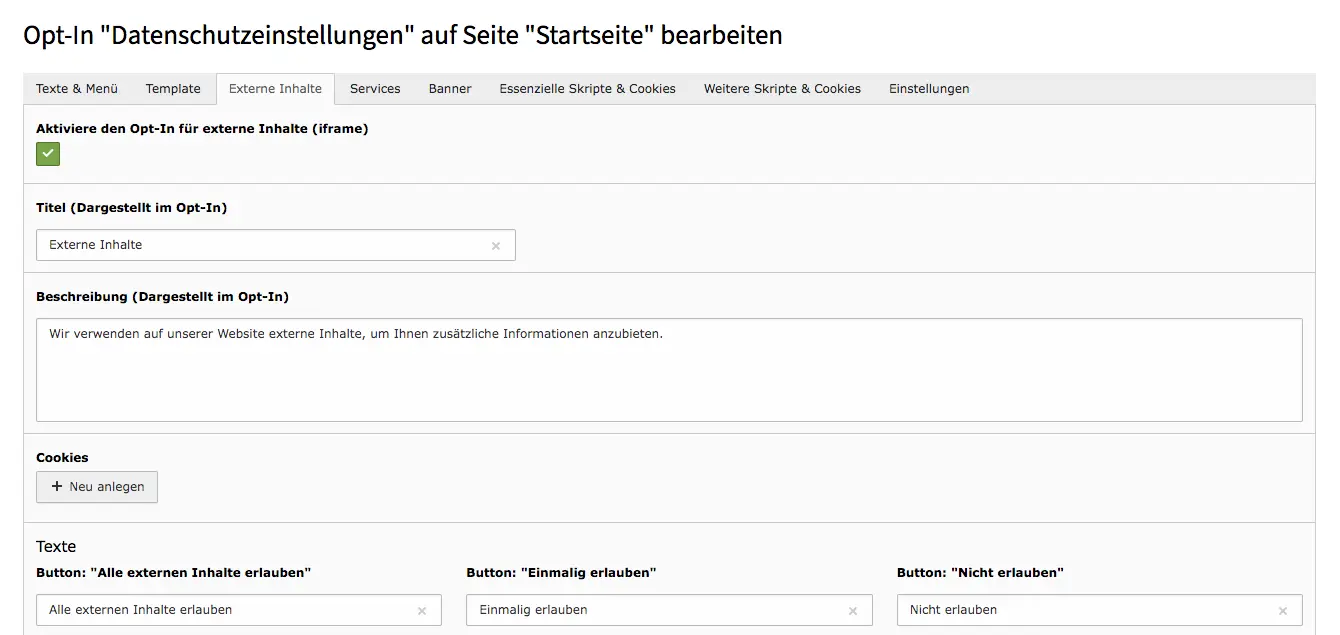
In combination with the protection of external content through our Cookie Opt-In Extension for TYPO3, a privacy-friendly integration of the videos is also possible. Our extension for cookies and external content prevents cookies from being set before visitors have agreed to them. For this purpose, a box is placed over external content, which allows loading this content or to accept all external content. It is also possible to customize this box.
To ensure that no questions remain unanswered, we have compiled a comprehensive set of documentations for our users of the TYPO3 Video Extensions. These guides take you step by step through the installation and integration of the YouTube and Vimeo extensions, and show you how to use the content elements that you will find in your TYPO3 instance after successful configuration.
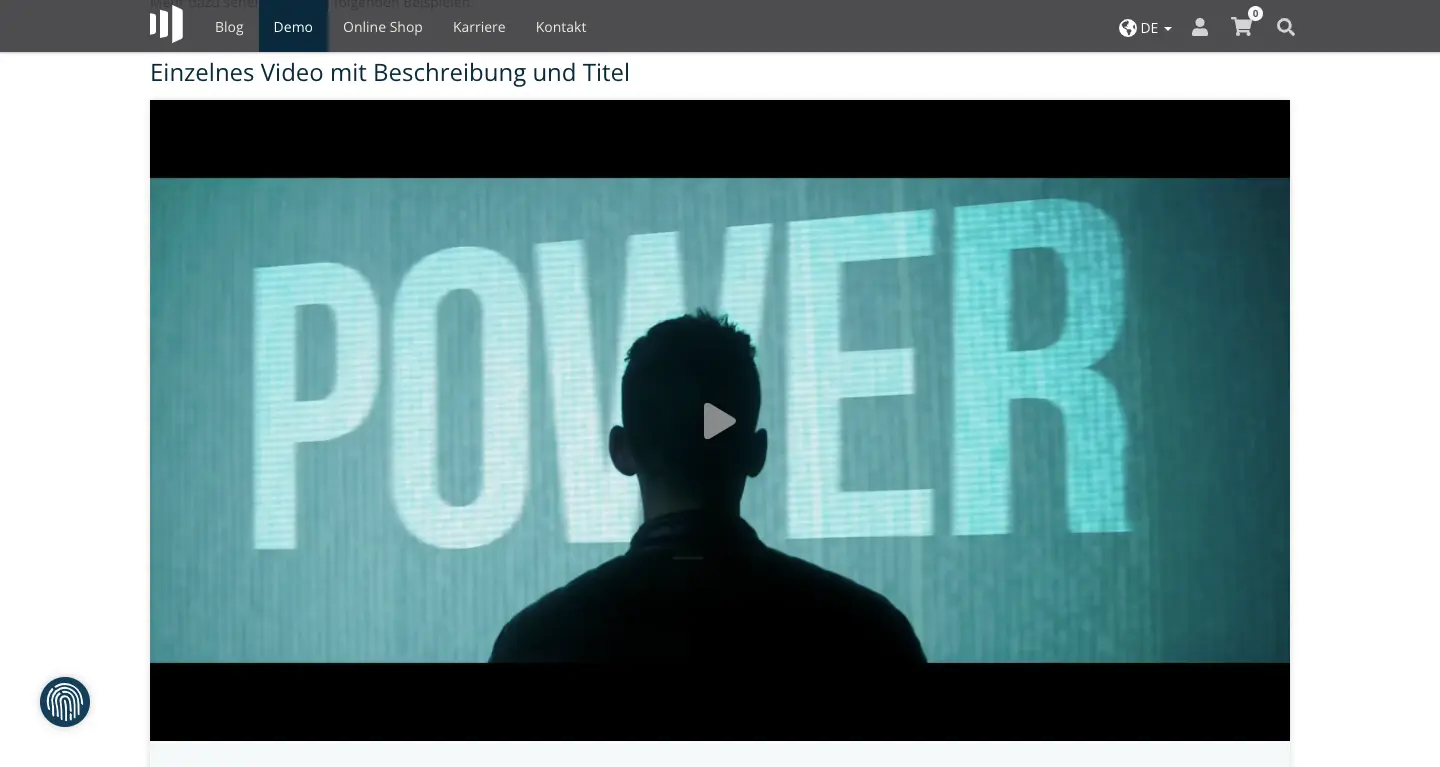
The TYPO3 extension for YouTube videos needs a YouTube API key to function correctly. Proceed as follows to get the API key for the YouTube API. We assume in this tutorial that you already have a Google account and are logged in.
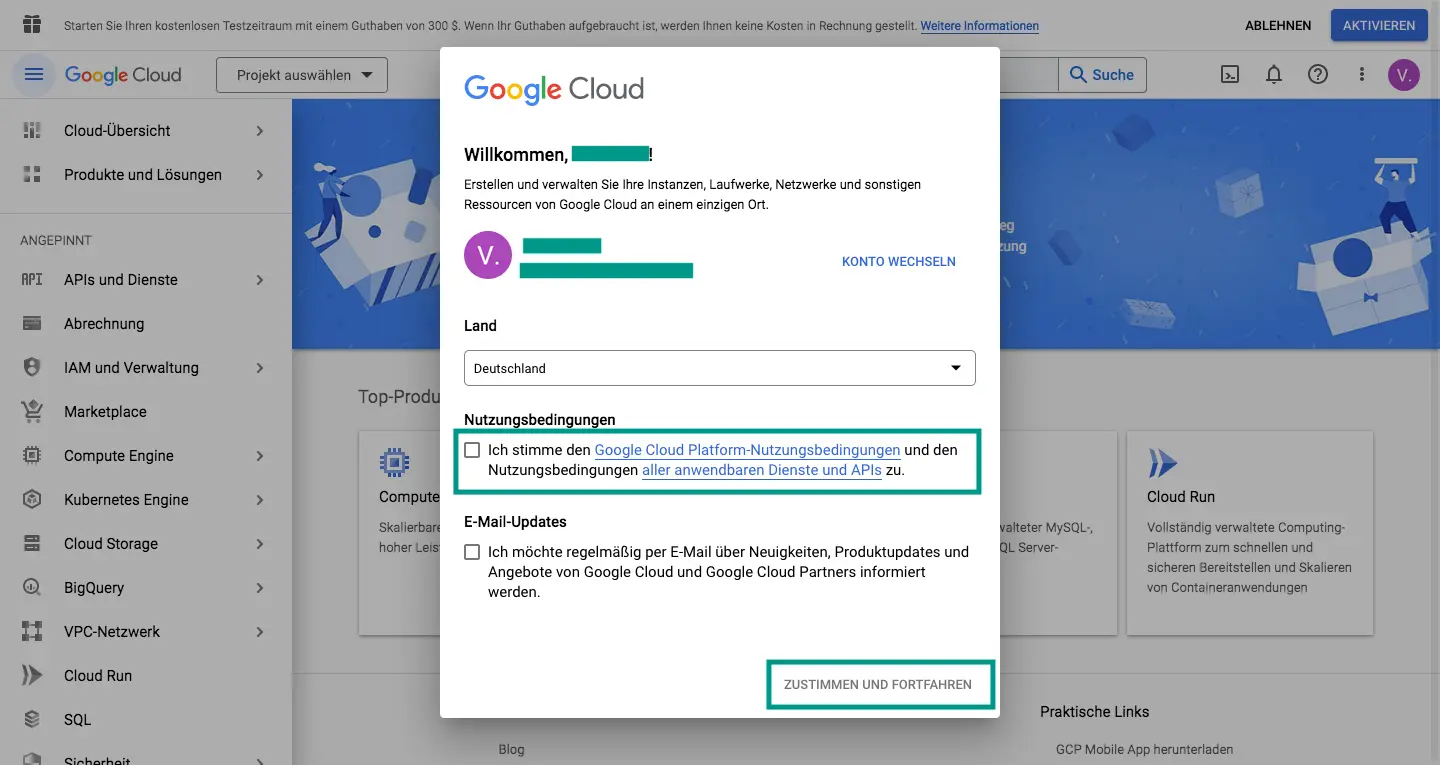
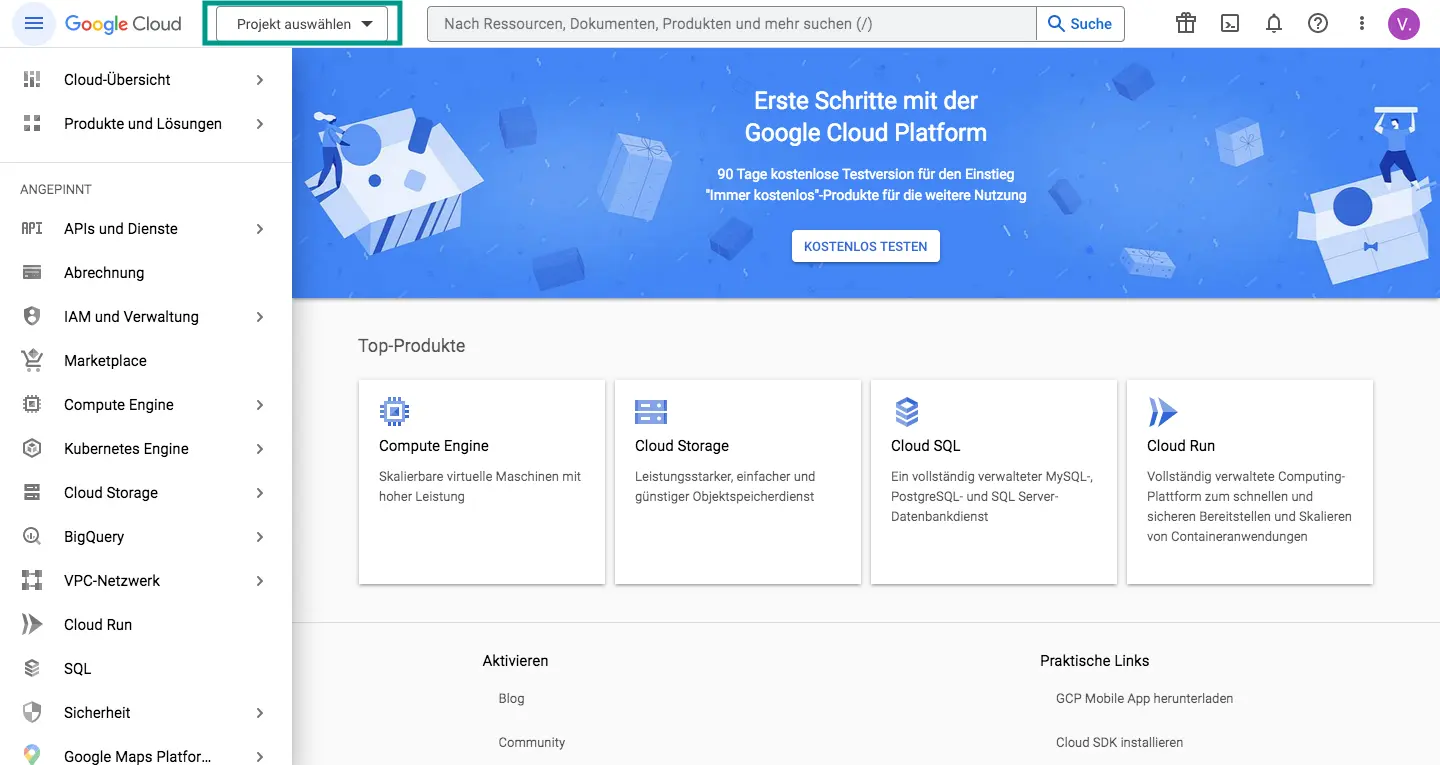
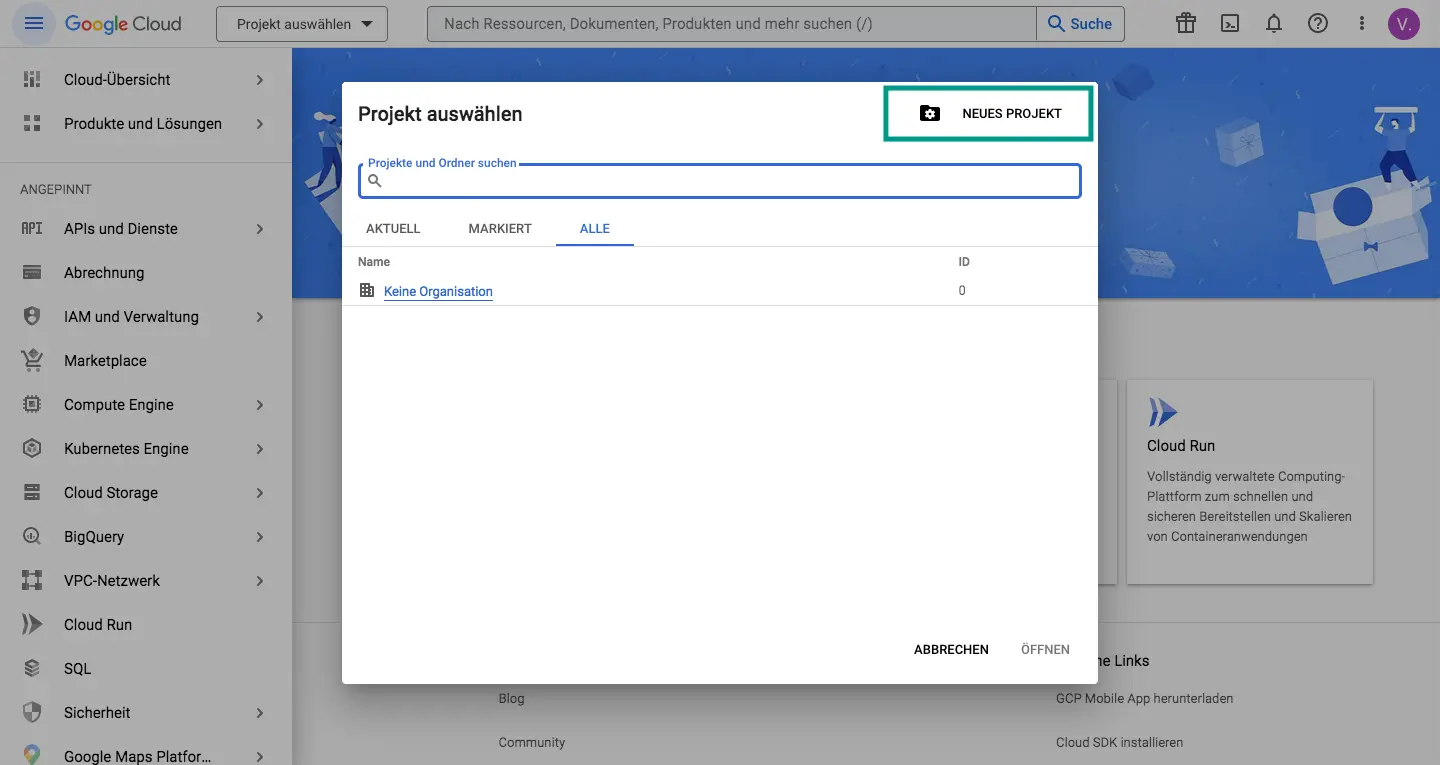
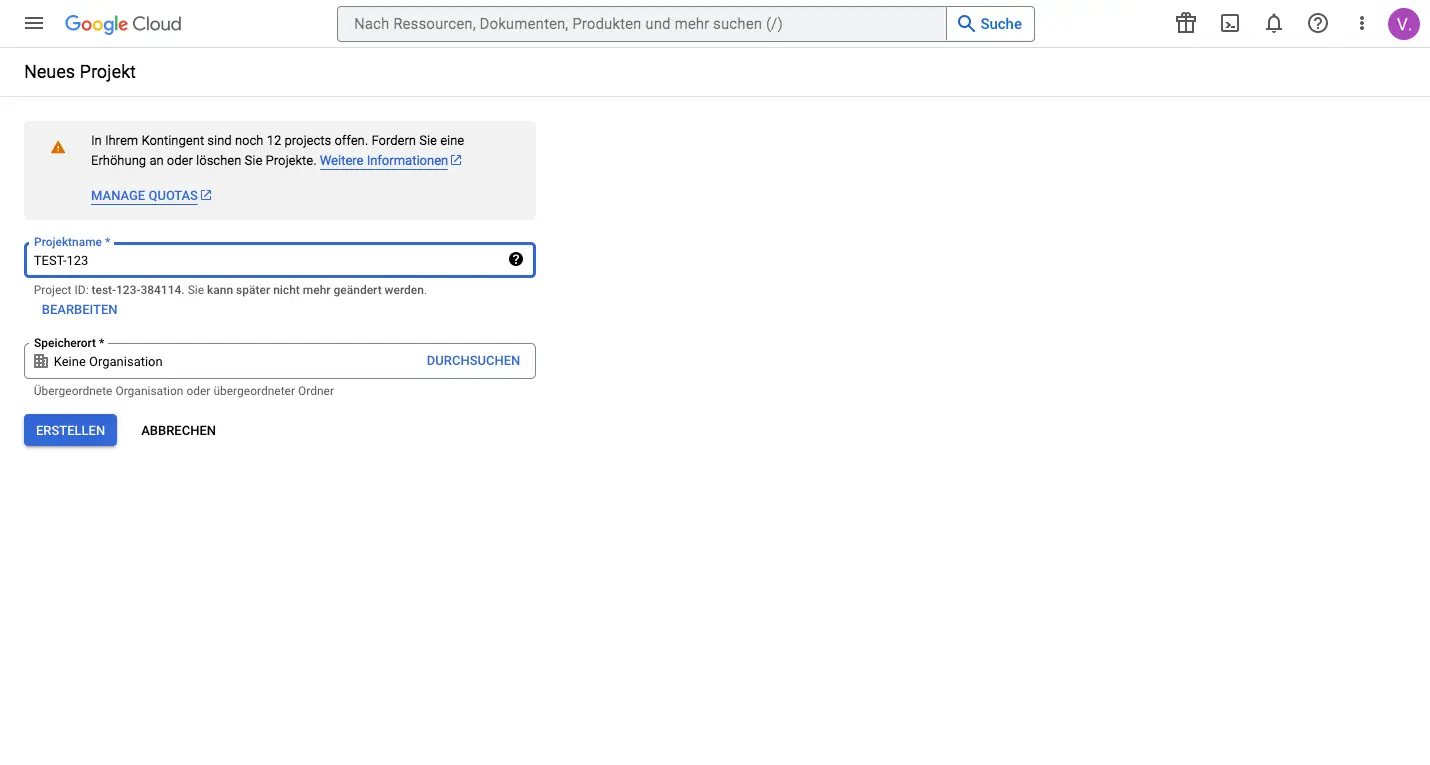
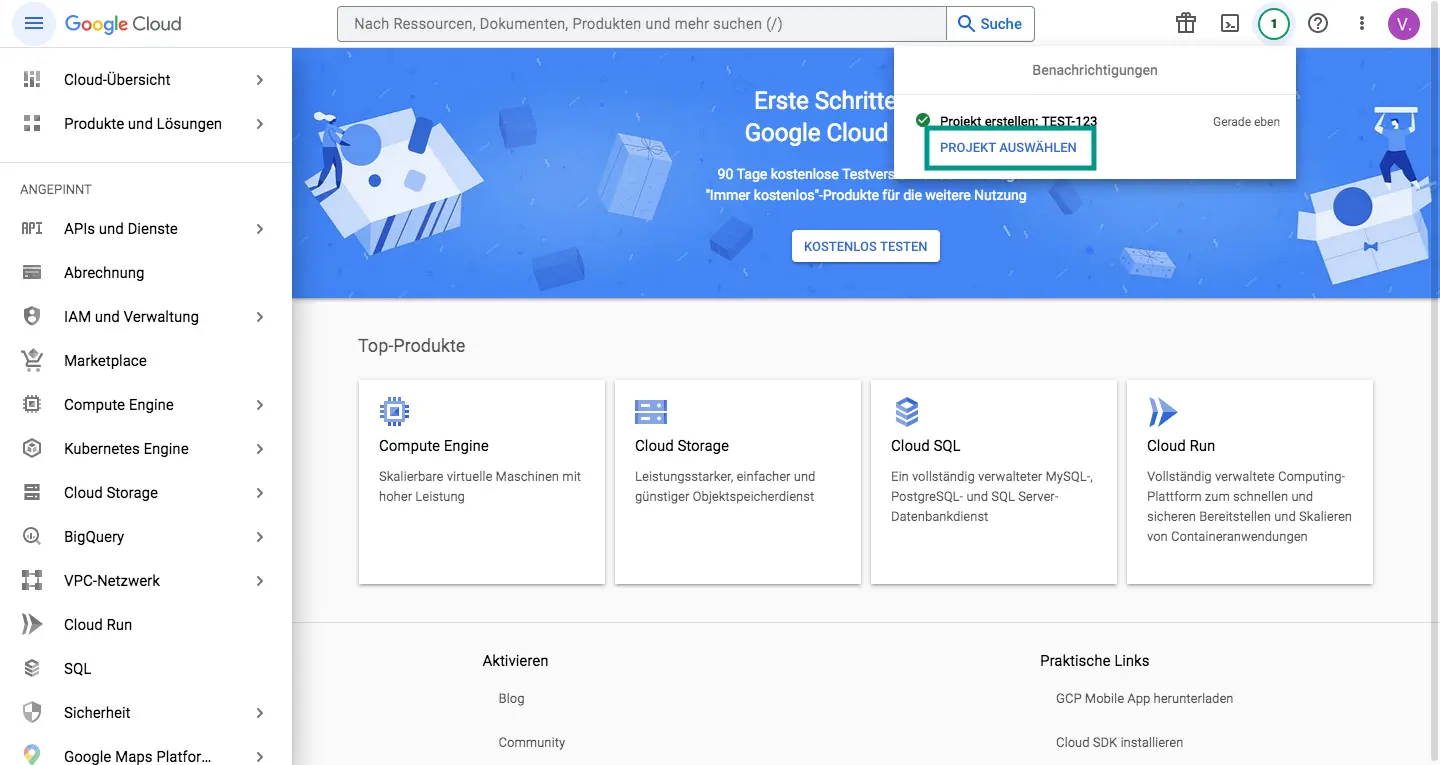
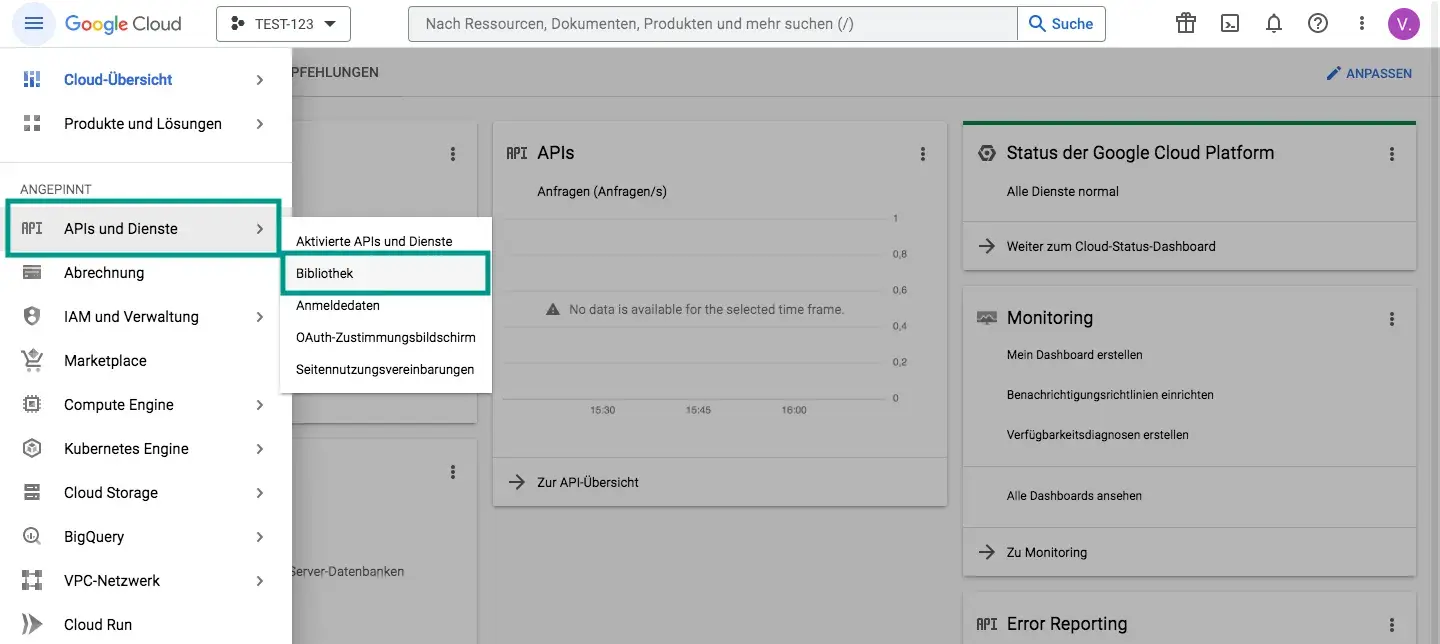

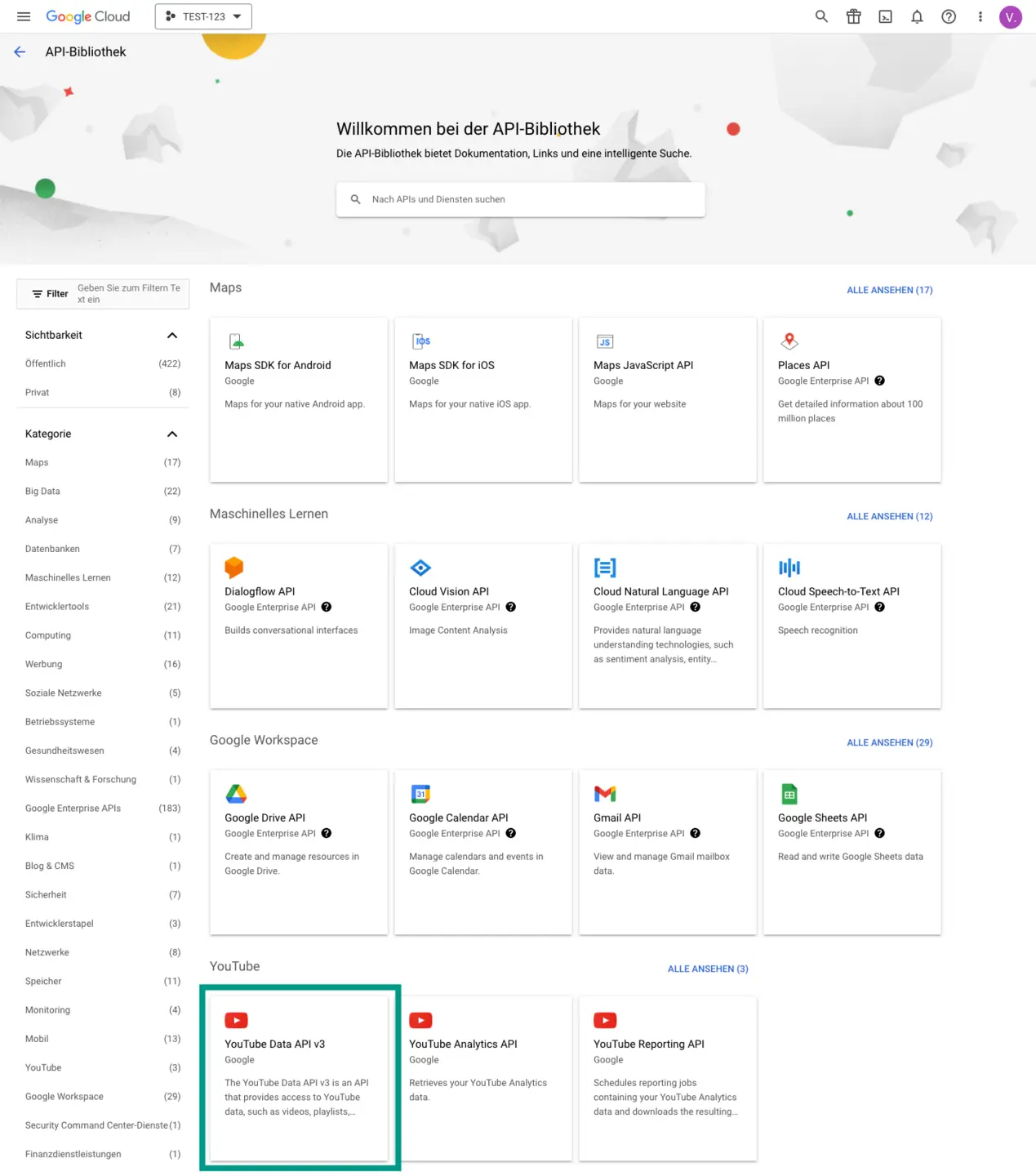

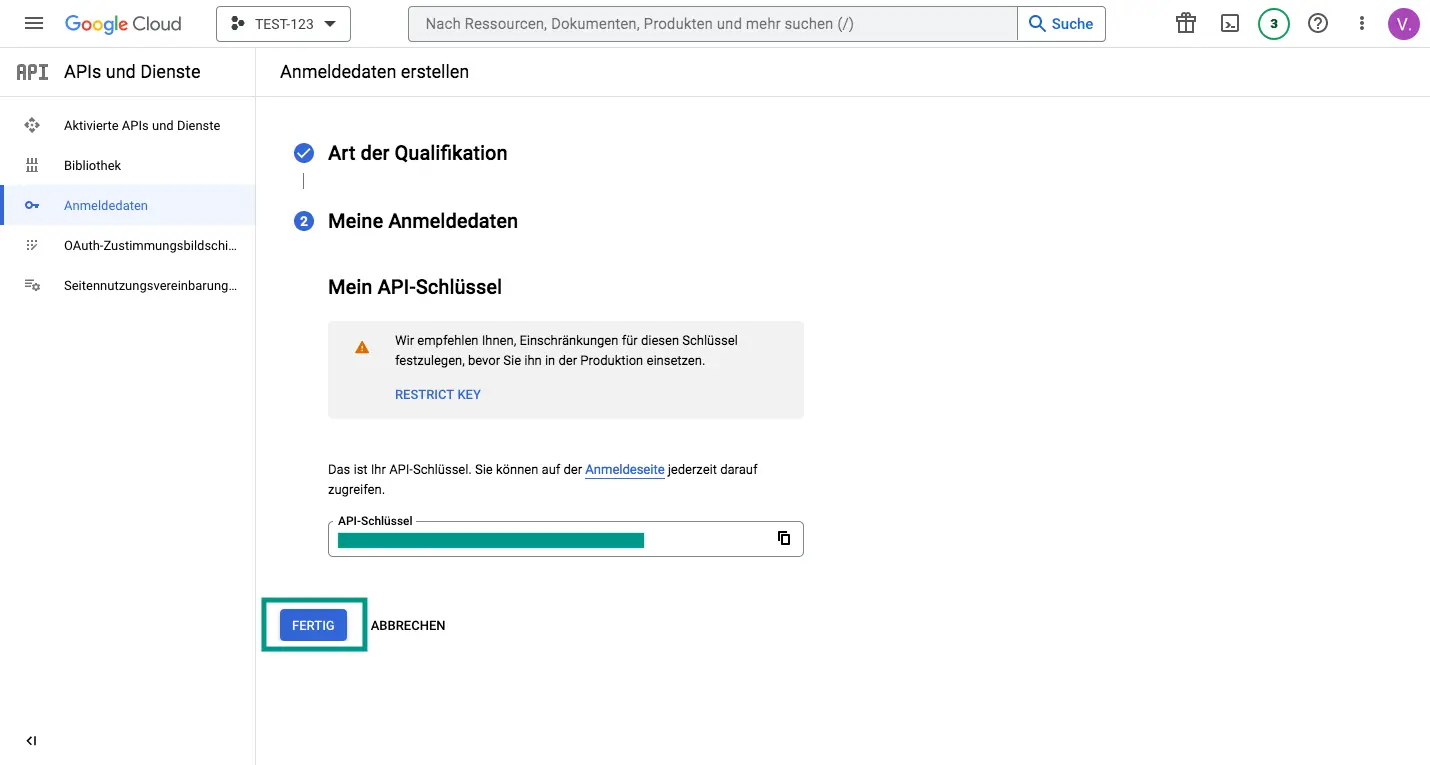
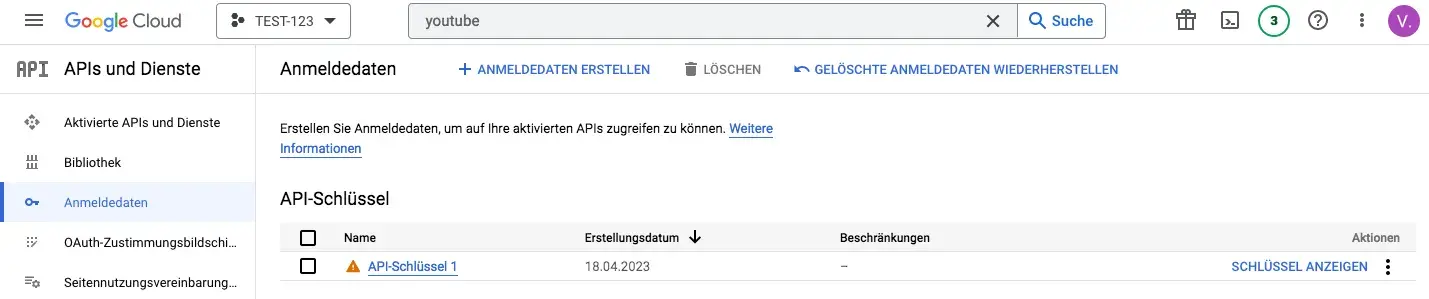
You have created the YouTube API key! – Enter the YouTube API key in the place as described in the TypoScript Integration section of the documentation below.
The TYPO3 extension for Vimeo videos needs a Vimeo Client ID and Client Secret to work correctly. We show you how to get the keys for the Vimeo API. We assume that you already have a Vimeo account and are logged in. If this is not the case, you have to register and/or log in to Vimeo beforehand (https://vimeo.com/).
You have already created a Vimeo App and only need Client ID and Client Secret for our TYPO3 Vimeo Extension? - Then go directly to the Apps on the Vimeo Developer page (https://developer.vimeo.com/apps). You can get there with the link just mentioned or via User Settings > API Apps. Click on the corresponding app and read out the necessary data as described in the following section.
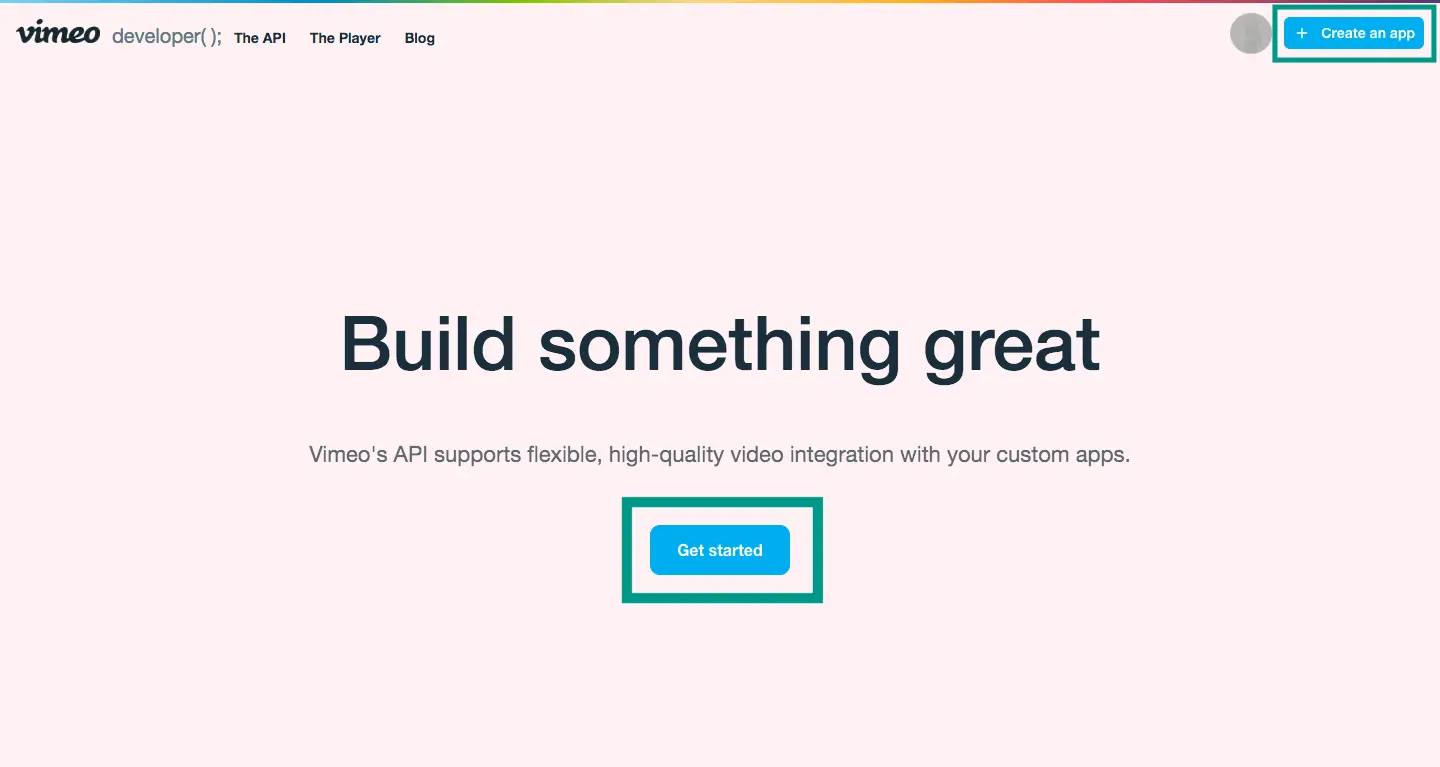
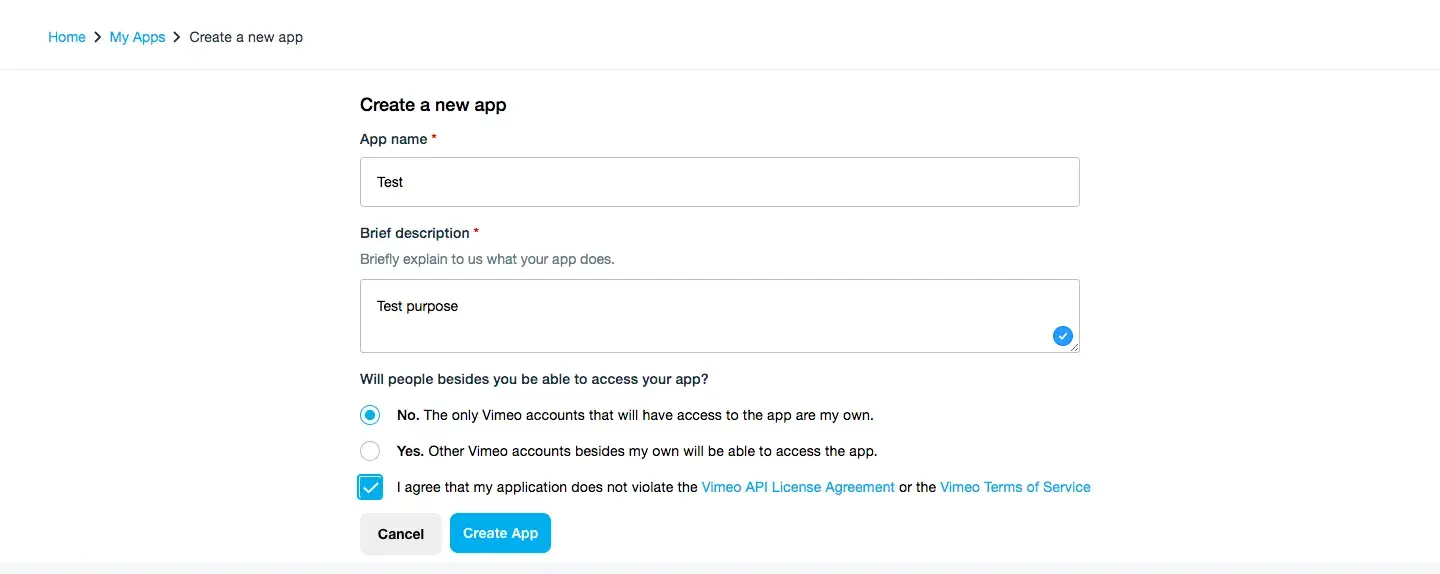

IMPORTANT: You must make sure that the account associated with the clientId and clientSecret API keys has the right permissions to search in the channel where the filters are being used. Otherwise searching for a query string will always result in an empty result set.
If you want to show a Vimeo video on your website that is not publicly available, you need a Personal Access Token. Follow these steps to create a personal access token.
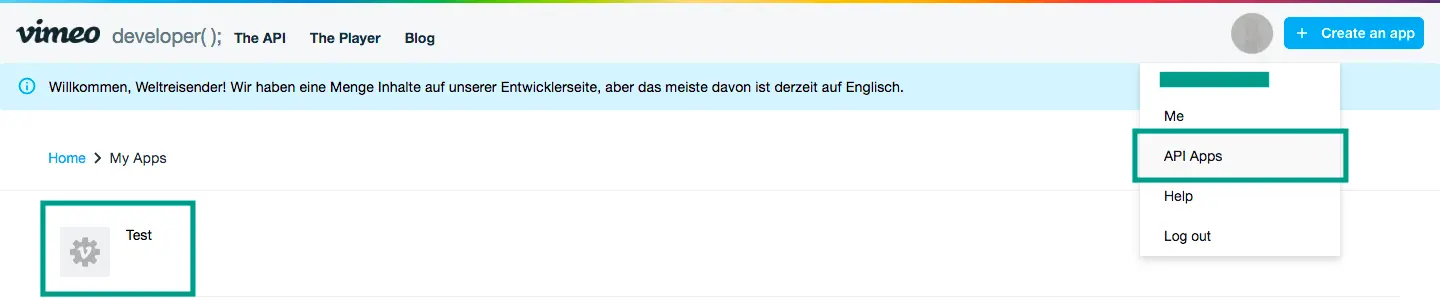
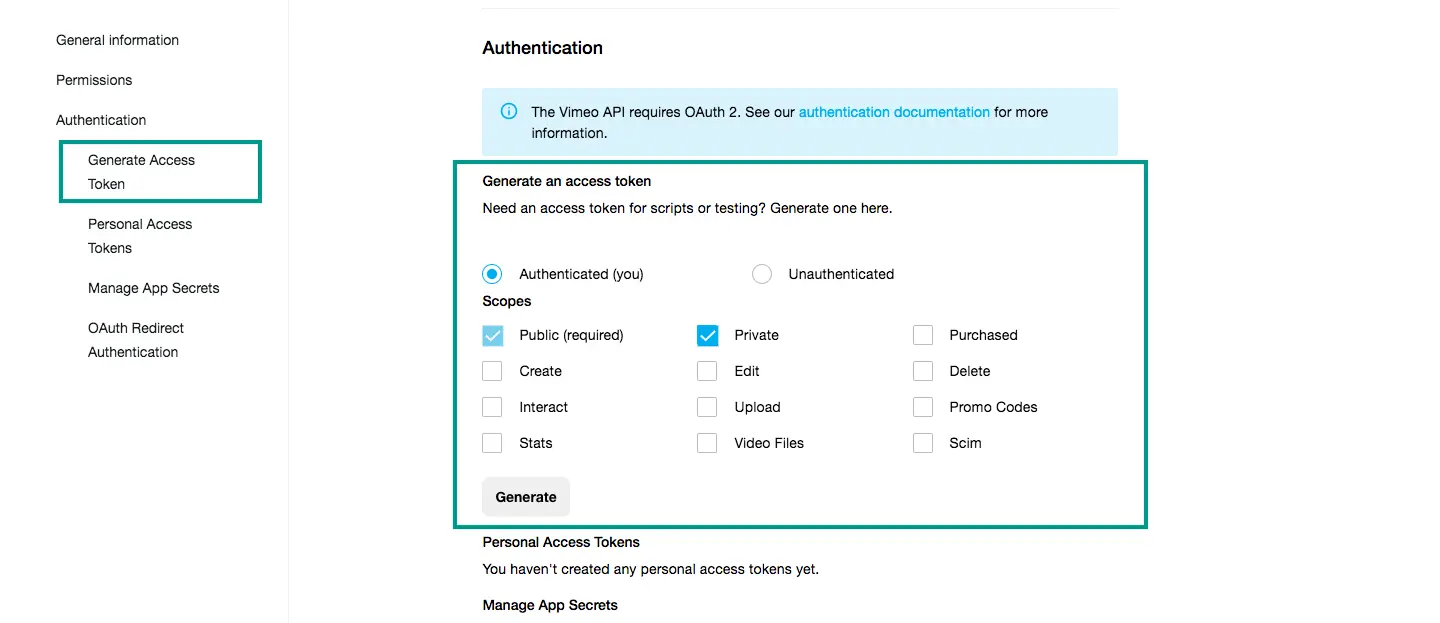
Note: As soon as you leave the page and/or reload it, you will no longer be able to copy the access token. It will be unrecognizable afterwards. However, it is always possible to create a new personal access token for a Vimeo app or to delete it.

Read more about the process of creating a Vimeo Personal Access Token in the official Vimeo documentation, at: https://help.vimeo.com/hc/en-us/articles/12427789081745-How-do-I-generate-a-personal-access-token
Enter the Vimeo Keys in the place as described in the TypoScript Integration section of the documentation below.
{"message":"401 Unauthorized"}

The Video content element allows YouTube, Vimeo and local videos to be embedded directly into a TYPO3 page. The previously separate extensions sg-vimeo and sg-youtube have been merged into sg-video. Instead of a plug-in, a dedicated content element is now used, which provides all the previous functions in a centralised manner.
The following options are available:
Vimeo Channel Name
NOTE: Vimeo has restricted the use of channels for visitors from the EU and the UK.
It may not be possible to view videos even if you have used a valid channel ID.
To add a channel name, copy from the link of the channel everything that comes after vimeo.com/channels/ and paste it into line for the ID/name.
vimeo.com/channels/staffpicksstaffpicks
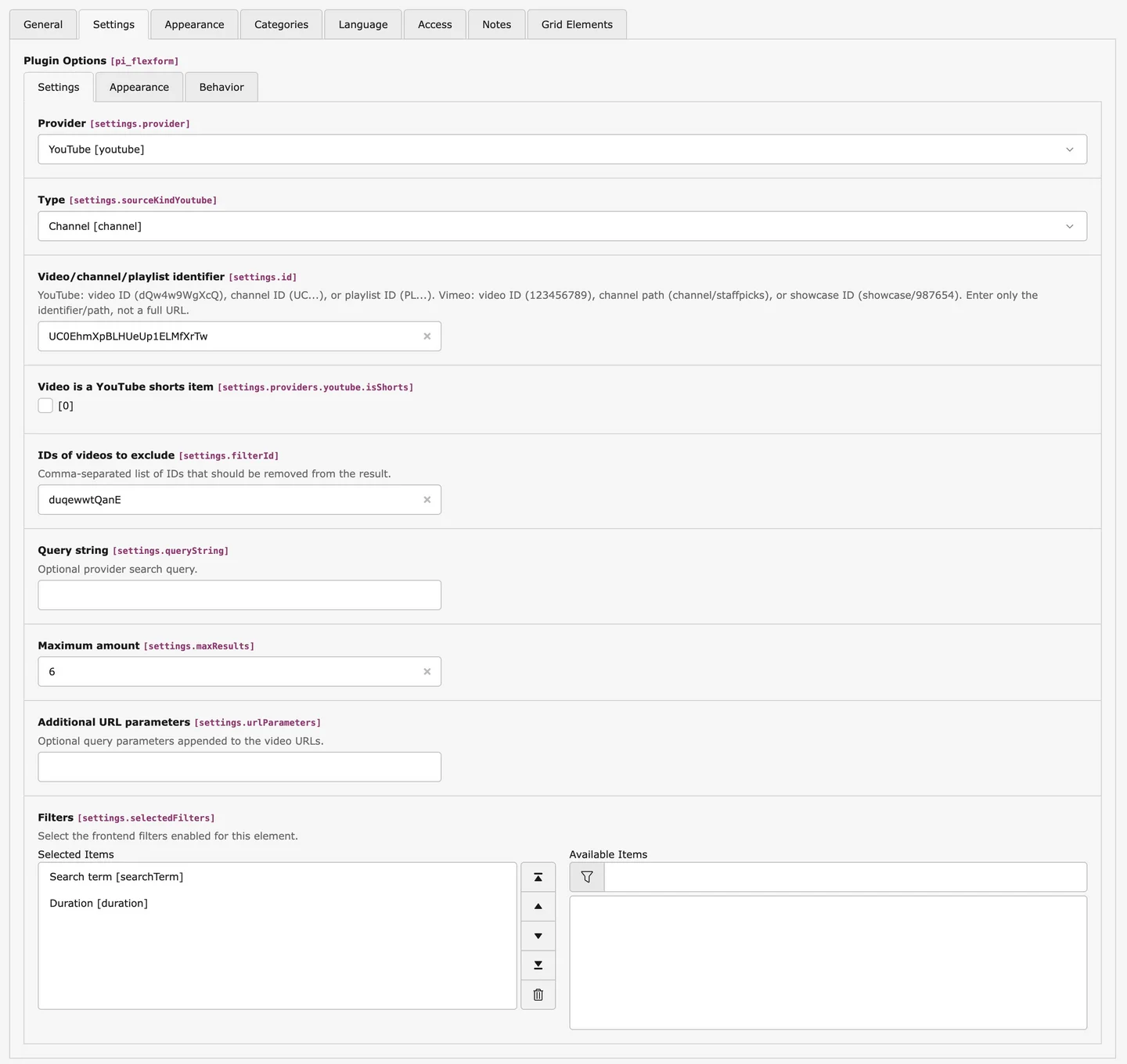
Vimeo Showcase ID
To add a video ID, copy from the link of the video everything that comes after vimeo.com/showcase/ and paste it into line for the ID.
vimeo.com/showcase/vimeocanhelpvimeocanhelpVimeo Video ID
To add a video ID, copy from the link of the video everything that comes after vimeo.com/ and paste it into line for the ID.
vimeo.com/24610748724610748IMPORTANT: You must make sure that the user associated with the clientId and clientSecret API keys has the right permissions to search in the channel where the filters are being used. Otherwise, searching for a query string will always result in an empty result set.
There are several ways to find out the channel ID, as through the URL the ID is no longer visible for some time. If it is the ID of your own YouTube channel, you can find the letters and number sequence in the advanced settings of the account. You can find instructions from Google on how to do this.
If you need the channel ID of any YouTube channel, you need to open the desired channel in YouTube. Click on 'more' in the channel description and then click on Share channel in the window that appears. There you will find the option 'Copy channel ID'. You can then paste the copied ID into the YouTube extension.
You then simply paste the channel ID into the plug-in and make any other settings you need.
To add a playlist ID, copy from the playlist link everything that comes after list= and paste it into line for the ID.
www.youtube.com/watch?v=rrVDATvUitA&list=PLmhUZw8WWzebYTvtVWHkb_YMgKARy6UONPLmhUZw8WWzebYTvtVWHkb_YMgKARy6UONTo add a video ID, copy from the link of the video everything that comes after watch?v= and paste it into line for the ID.
www.youtube.com/watch?v=IBAhAk0-sPoIBAhAk0-sPoIn the content area, you will see an overview of the settings you have configured in the content element.

Depending on the settings made, the result in the frontend can look very different. In our preview page you can see some examples of this.
An embedded video is a video that is integrated in a web page and played directly from there without the user having to switch to another website or external player. It is often provided by video sharing platforms such as YouTube or Vimeo and can be inserted on other websites through an embed code.
A media library is a collection of media files such as videos, audio, images and documents that are stored and managed centrally. Media libraries are often used by organizations, companies, websites and social media platforms to manage and share their digital content. By using a media library, one can easily access all media files and use them in other contexts without having to upload them again each time.
There are a variety of video portals, some of the most well-known include: YouTube, Vimeo, Dailymotion, Facebook Video, Twitch, TikTok, Instagram TV (IGTV), LinkedIn Video, Twitter Video.
However, this is just a short list, there are many other video portals that vary depending on the target audience and purpose.
'YouTube No Cookie' is an option that allows for YouTube videos to be embedded on websites without setting cookies. Usually, when playing a YouTube video on a website, cookies are set to collect and analyze information about the user's behavior. By using 'YouTube No Cookie', cookies can be prevented from being set, improving privacy settings. To use 'YouTube No Cookie', the embed code of the video must be changed to www.youtube-nocookie.com instead of www.youtube.com.
YouTube video quotas are limits set on the number of views of a video or the number of calls to a playlist on a specific website or domain. These limits are established by YouTube to regulate and monitor the use of video and playlist content. Quotas can be used in various ways, such as limiting the use of content for commercial purposes or ensuring that a video is only used on specific websites. When a quota is reached, the video or playlist may no longer be displayed on the affected website.
There is a free version of Vimeo that allows users to upload and share videos. However, certain features and options such as unlimited storage capacity, advanced analysis tools, and the ability to link videos with a custom domain are limited to the paid version.
An API (application programming interface) is an interface between software programs that enables communication and data exchange between them.
For example, if you want to create a media library with videos from YouTube or Vimeo, you can use their APIs. The API allows you to access and retrieve videos from the video platform without having to download them or host them yourself. The APIs also give access to information about the videos, such as title, bscription, and keywords. In addition, information about the channel that uploaded the video can be retrieved, and the number of views, likes, and comments on the video can be obtained.
Overall, an API is a useful tool for developers to leverage data and functionality from different systems without having to code everything from scratch.
An API key, API key, or API token is a special code/access key used to gain access to an API. It is used to authorize and control access to the API.
Anyone who wants to use an API usually has to register with the API provider to obtain an API key. The API key is unique and is generated by the API platform. The key is used when a request is made to the API to authorize access to the data. API keys can also be used to restrict or extend access to specific functions or data within the API.
Overall, the API key is an important mechanism to ensure that only authorized users can access the API's data and functions, and to prevent unauthorized people or applications from using the API.
[1] There is no guarantee for permanent availability or support of the software. Licensees may use the software during the license period as long as it is officially supported and available.
Contact us
You are interested in the TYPO3 video extensions sg_youtube and sg_vimeo or in one of our other products? You would like to use our services? – Then simply contact us with your request. We are looking forward to your message!